
Epix IPTV Setup & Installation Guides
Set up Epix IPTV on your Firestick, Smart TV, Android, iPhone, Apple TV, MAG box or computer using the device guides below. Check your model, software version and player compatibility before installing. App purchases are separate from your Epix IPTV subscription. For Fire TV, see our IPTV Smarters Pro on Firestick compatibility and setup guide. New customers can request a free 24-hour Epix IPTV trial to test their device before choosing a plan.
Amazon Firestick
Welcome!
These steps apply only when your Fire TV supports the chosen player and its installation method. Start with the developer’s current downloads. We have not verified a direct Smarters Pro Fire TV APK; confirm a supported package before following the installation steps below.

Step 1 : Navigate to Settings
Open Settings on your Fire TV. Before changing installation permissions, confirm your device model, software version and the player developer’s supported installation method.
Step 2 : Select My Fire TV
In the Settings menu, find and select the ‘My Fire TV’ option.
Step 3 : Choose Developer Options
On some Fire TV versions, Developer Options appears after selecting the device name in About seven times. Menus and installation support vary by model and software; follow Amazon’s device guidance. Do not enable ADB debugging just to install a player through Downloader.
Step 4 : Select Install unknown apps
If your supported installation method requires an APK and your device offers Install unknown apps, open that setting. If this option is unavailable, use an app supported by your device rather than assuming these steps apply.
Step 5 : Enable Downloader
Grant installation permission only to the installer you intend to use, if your device supports it. Turn the permission off again after installation.
Step 6 : Open the Downloader App
If the developer’s installation method uses Downloader, obtain it through the Amazon Appstore on a supported device, then open it. If the player is available directly in your device’s store, use that route instead.
Step 7 : Allow Permissions
Review the installer’s permission prompts and grant only the access needed for the documented installation method. Prompts vary between device and app versions.
Step 8 : Navigate to URL Entry Box
You will now see the Downloader home screen with an entry box for a URL. This is where you will type the download address.
Step 9: Enter the Verified Download Address
Enter the exact download address confirmed by the player developer for your device. We do not publish an unverified short code. If no compatible download is provided, stop here and ask support about a supported player.
Step 10 : Wait for Download
Download only the compatible package identified by the developer. Check the app name and publisher before installing; a similarly named download may be a different application.
Step 11 : Install the Application
Once the download is complete, the installation screen will pop up automatically. Use your remote to navigate to and click the ‘Install’ button.
Step 12 : Confirm Installation
When the installation process is finished, a confirmation message will display ‘App Installed’. It is best to click ‘Done’ for now. (Do not click ‘Open’ yet).
Step 13 : Delete the Installer File
You will be automatically taken back to the Downloader app. A pop-up will appear with the installation file details, asking what you want to do next. Click ‘Delete’ to save valuable space on your device.
Step 14 : Confirm Deletion
Click ‘Delete’ a second time to permanently remove the installation file. Our application is now successfully installed on your device.
Step 15 : Find and Open Our App
Part 3: Logging In & Starting to Watch Now that the app is installed, let’s log in with your subscription details. Go to your Fire TV’s Home Screen. Navigate to the ‘Your Apps & Channels’ section and find our new app’s icon. Click to open it.
Step 16 : Select Login Method
Choose the provider-login or playlist option supported by your player. Use a server login only when you have a server address, username and password; use a playlist option when you have an M3U link. Labels vary between versions.
Step 17 : Enter Your Credentials
Enter the playlist name, username, password and server address supplied in your Epix IPTV activation details, using the fields supported by your player. Copy the complete address exactly, including http:// or https:// and any port. Do not change the address scheme or share your password publicly.
Step 18 : Loading Content
The app will now begin to load the channels, movies, and series associated with your account. This process may take a minute or two. Please be patient.
Step 19 : Enjoy the Show!
Congratulations! You are now logged in. You will see the main dashboard of the app. You can now explore Live TV, Movies, and Series. Enjoy the show!
Installation Complete!
Once the compatible player is installed, enter your active Epix IPTV account details. If installation or login fails, contact support with the device model, app version and error message. You can test the service for 24 hours before choosing a paid plan.
Smart TV (LG/Samsung)
Step 1 : Access Your TV's App Store
Turn on your Samsung or LG Smart TV and ensure it’s connected to the internet. Using your remote, navigate to the main home screen to find the App Store. On Samsung TVs, this is called the ‘Samsung App Store’. On LG TVs, it’s known as the ‘LG Content Store’.
Step 2 : Search for a Compatible IPTV Player
Choose a player listed for your exact TV model and region. Check the developer’s current support list: Smarters Pro currently lists Samsung support and says LG is coming soon. Do not assume the same app is available on both brands. Check any separate player activation fee before purchasing.
Step 3 : Install the Application
Select the application you chose from the search results. Follow the on-screen instructions to download and install it on your Smart TV. Once installed, you will find the new app on your TV’s home screen or in the ‘My Apps’ section.
Step 4 : Launch the App and Note Your Device Info
Open the newly installed IPTV application. For many players (like IBO Player or SET IPTV), the app will display a unique ‘Device ID’ and ‘Device Key’ on the screen upon the first launch. It is crucial to write down this information accurately, as you will need it to activate your service.
Step 5 : Activate Your Service via Web Portal
Use only the activation portal named inside your installed player. If the player uses a Device ID and Device Key, enter those details privately along with the playlist information supplied in your Epix IPTV activation email. App activation and your streaming subscription are separate.
Step 6 : Log in with Xtream Codes API (Alternative)
If your chosen app (like IPTV Smarters Pro) supports it, select the ‘Login with Xtream Codes API’ option. This is often the easiest method. Simply enter the details (Username, Password, and Portal URL) that you received in your Epix IPTV activation email to log in directly.
Step 7 : Restart the App and Enjoy
After activating your playlist through the web portal or logging in via the API, close and restart the IPTV application on your Smart TV. The app will now load all the channels, movies, and series included in your Epix IPTV plan. Your setup is complete and ready to enjoy!
Your Smart TV is Ready!
Excellent! Your Smart TV is now set up and waiting for activation. The final step is to choose an Epix IPTV plan to get your login credentials. Unlock a world of premium entertainment directly on your big screen in just a few clicks.
Installation on Android Devices
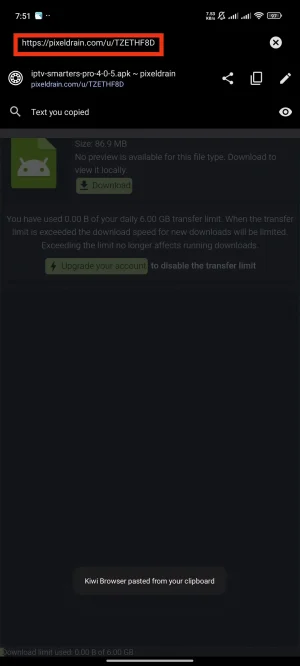
Step 1: Find the Official Android App
Start at the Smarters Pro website and follow its Android phone or Android TV store link for your device. Verify the publisher before installing.
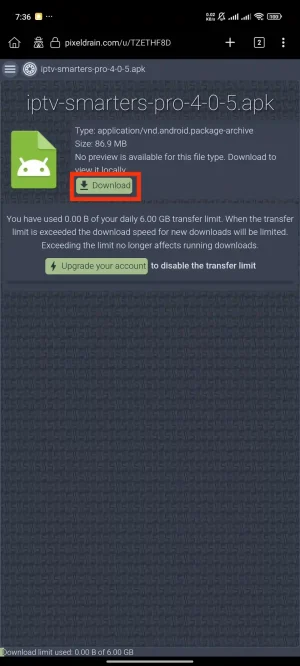
Step 2 : Download the Application
Install the compatible app from the developer-linked store. Use a standalone APK only if the developer supplies it for your device and explains that installation route.
Step 3 : Install the Application
Follow the store installation prompts. If using a developer-supported APK, grant the required installer permission only for that installation and turn it off afterward.
Step 4 : Open IPTV Smarters Pro & Select Device
Open the installed player. If asked for a device type, choose the option matching your phone, tablet or TV. The available screens depend on the installed version.
Step 5 : Choose Your Login Method
Select the playlist or provider-login option that matches the credentials supplied by Epix IPTV. The player’s wording may differ between versions.
Step 6 : Enter Your Login Details
You are now on the Xtream Codes API login screen. Carefully enter the credentials (Playlist Name, Username, Password, and URL) that we provided in your subscription email, then tap ‘Add User’.
Step 7 : Download Content
The app will now connect to our servers and start downloading the list of channels, movies, and series. This may take a minute or two depending on your internet speed.
Step 8 : Congratulations!
Your account is now set up and ready to go! You can now browse the extensive library of live TV and on-demand content. Enjoy the show!
Installation on iOS Devices
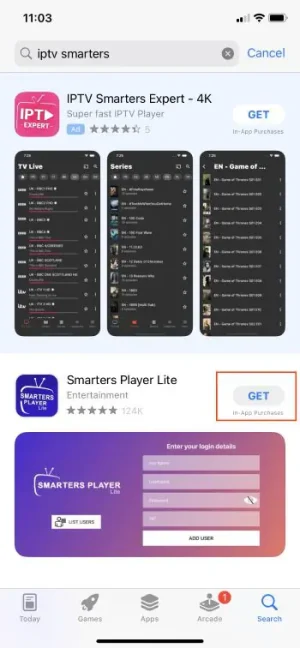
Step 1 : Download the App
Follow the iOS App Store link from the Smarters Pro developer website. Check device compatibility and the publisher before downloading.
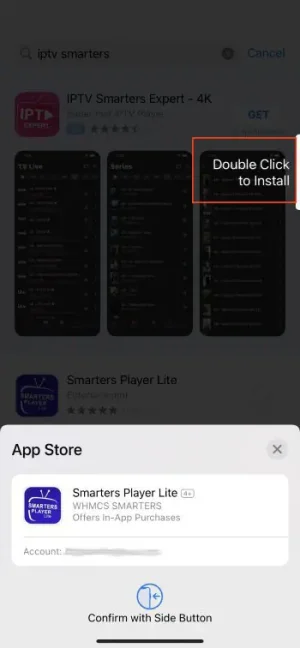
Step 2 : Install & Launch
Install the developer-linked app through the App Store and open it. Review the current price and any in-app purchases; player charges do not include your Epix IPTV subscription.
Step 3 : Configure the Service and Choose the Login Method
Choose the playlist or provider-login option supported by your app version and matching your Epix IPTV details. No login method guarantees playback without technical issues.
Step 4 : Login Using Xtream Codes
Since we chose the Xtream Codes login method, fill in the details you received from our provider: username, password, and server URL. Always double-check the information—especially the server URL—as it is crucial for successfully connecting to the service.
Step 5 : Enjoy Your Content
Allow the playlist to load, then test a channel and check the programme guide. If loading fails, check the account status, server address and connection before reinstalling.
Need Help?
If you encounter any issues, our support team is available 24/7 to assist you.
Laptops & PC
Step 1 : Choose and Install a Player Application
Use the Smarters Pro developer website to find the Windows or macOS download and current system requirements. Check whether the version is marked beta. Install only a package compatible with your computer.
Step 2 : Launch the Application
After successfully installing IPTV Smarters Pro, find its icon on your desktop or in your applications folder and open it. On the first launch, you will be presented with the main screen, ready for you to add your subscription details.
Step 3 : Select Your Login Method
Select the player’s playlist or provider-login option that matches your Epix IPTV activation details. Programme-guide availability depends on the player and the guide data supplied with your account.
Step 4 : Enter Your Epix IPTV Credentials
You will now see a login form with several fields. You must fill these out using the details provided in your subscription activation email from us.
– Playlist Name: You can enter any name you like, for example ‘Epix IPTV’.
– Username: Enter the specific username we sent you.
– Password: Enter the exact password we sent you.
– Server URL: Copy and paste the complete server URL from your email.
Please be very careful and double-check all information before proceeding.
Step 5 : Add User and Start Streaming
Once all fields are correctly filled, click the ‘Add User’ button. The application will then connect to our servers and start downloading all the channel lists, VOD content, and TV guide information. This might take a minute or two. After it’s done, you’ll land on the main dashboard. Your setup is complete—enjoy streaming on your computer!
Your Computer is Ready for Action!
With the player installed, use your active Epix IPTV credentials to sign in. Compare plans and connections or start with a free trial.
Apple TV
Step 1 : Access the App Store
Turn on your Apple TV and navigate to the home screen. Find and open the App Store application. It’s your gateway to downloading all applications, including the one we need for our Epix IPTV service.
Step 2 : Search for the Recommended App
Follow the Apple TV link on the Smarters Pro developer website and confirm the app supports your Apple TV and software version.
Step 3 : Download and Install
Install the developer-linked app from the App Store. Check the current app price and any paid features before proceeding.
Step 4 : Launch the Application
Open the installed player from your Apple TV home screen and review its terms. The app and your streaming subscription are separate services.
Step 5 : Select Your Login Method
Choose the playlist or server-login method supported by this app version and matching your Epix IPTV account details.
Step 6 : Enter Your Credentials
You will now see a login form. Carefully enter the account details that were sent to your email after subscribing to Epix IPTV. This includes a Playlist Name (you can type ‘Epix IPTV’), your specific Username, Password, and the Server URL. Accuracy is crucial here, so please double-check each entry.
Step 7 : Load Content and Enjoy
After clicking ‘Add User’, the app will begin connecting to our servers and downloading the full library of channels, movies, and series. This may take a moment. Once complete, you will be taken to the main dashboard. Congratulations, you are now ready to explore and enjoy the vast world of entertainment with Epix IPTV, including a full programme guide and thousands of shows!
Installation Complete! Ready for Epix TV?
Use your active Epix IPTV account in the compatible player. If you still need an account, compare subscription plans or request a free trial.
Need Help?
If you encounter any issues, our support team is available 24/7 to assist you.
MAG Box
Step 1 : Initial Device Setup
Before you begin, ensure your MAG Box is correctly connected to your television with an HDMI cable and to your internet router using an Ethernet/LAN cable for the most stable and reliable streaming experience with Epix IPTV. Once all cables are securely in place, power on your MAG device.
Step 2 : Access the Main Settings
Once your MAG Box has finished booting up and you are on the main home screen (the Inner Portal), locate the ‘Settings’ button on your remote control. It is typically represented by a gear icon (⚙️). Press it to enter the main configuration menu of your device.
Step 3 : Navigate to System Settings
Inside the ‘Settings’ menu, you will see several options. Use the directional arrow keys on your remote to highlight ‘System Settings’ and press the ‘OK’ button to proceed. This is where the core device configurations are managed.
Step 4 : Open Servers & Portals
On supported MAG Linux/WebKit devices, go to System settings, then Servers, then Portals. Menu labels vary by model; consult Infomir’s portal instructions for your device.
Step 5 : Configure Portal 1
Choose an available external portal field. Enter Epix IPTV as its name and use the portal URL supplied for your account. The number of available portal fields varies by model.
Step 6 : Enter the Portal URL
Using the on-screen keyboard, carefully type the unique Portal URL that was provided in your Epix IPTV subscription confirmation email. It is essential to enter this address exactly as it was given to you, without any typos. Double-check your entry before proceeding.
Step 7 : Save and Reboot
After entering the URL, press the ‘OK’ or ‘Save’ button on your remote to store the settings. You will be prompted to reboot the device for the changes to take effect. Confirm the reboot. Your MAG Box will now restart.
Step 8 : Launch the Epix IPTV Portal
Upon restarting, your MAG Box will automatically attempt to load the portal from the URL you just entered. If all details were entered correctly, the Epix IPTV portal interface will load, presenting you with categories for Live TV, Movies, and Series. Your setup is now complete, and you’re ready to explore a huge library of Epix tv shows and other content!
Your MAG Box is Ready!
Your MAG device needs an active account and the correct portal address. If the portal does not load, contact support with your model and error message before resetting the device.
Need Help?
If you encounter any issues, our support team is available 24/7 to assist you.
Enigma2
Step 1 : Obtain Your Enigma2 Script Command
Ask Epix IPTV support to confirm your Enigma2 receiver model and installed image before requesting configuration instructions. Make a settings backup first. Do not assume one installation command works on every receiver.
Step 2 : Find Your Enigma2 Device's IP Address
To connect to your receiver, you need its local IP address. You can usually find this by navigating on your receiver to: Menu > Information > Network. Note down the ‘IP Address’ (e.g., 192.168.1.15).
Step 3 : Connect to Your Device Using an SSH Client
Use the connection method documented by your receiver image. If SSH is supported and enabled, connect to the receiver’s local IP address with an SSH client on your own network. SSH and Telnet are different protocols; do not select Telnet in a step described as SSH.
Step 4 : Log In to Your Receiver
Sign in with the account and password configured for your own receiver. If you do not know them, use the receiver image’s documented password-recovery process. Do not guess default passwords or leave a network-accessible receiver without a password.
Step 5 : Paste and Execute the Installation Command
Use only the configuration command confirmed for your receiver and image. Review it with support before running it, especially if it downloads and executes a script. Stop if the command or source differs from the instructions you received.
Step 6 : Wait for the Installation to Complete
Follow the confirmed installation instructions and watch for errors. The configuration may add channel bouquets and guide settings. If it fails, save the error message and contact support rather than repeatedly running the command.
Step 7 : Restart Your Enigma2 Device
After the script confirms that the installation is complete, a restart is required for the new channel lists to appear. You can usually do this directly from your remote control by navigating to: Menu > Standby / Restart > Restart GUI. This will only restart the user interface, not the whole device, and is very quick.
Step 8 : Find and Enjoy Your Channels
Once the GUI has restarted, press the ‘TV’ or ‘Bouquet’ button on your remote control. You will now see the new epix TV bouquets (channel folders) added to your list. Navigate to them, select a channel, and start watching. Your setup is complete and you now have access to thousands of on-demand series and shows!
Setup Complete! Ready to Activate Your Epix IPTV Service?
After configuration, test a channel and the programme guide. For account or device help, contact Epix IPTV support. Compare plans and connection options if you need a subscription.